

Imagine installing a simple flashlight mobile app only to discover weeks later that it’s been quietly accessing your location, contacts, and even microphone in the background. Sound far-fetched? It happens more often than you think—and it happened to me.Check Mobile App Permissions on Android and iPhone Reclaim Your Privacy in 2026
I once opened my phone’s privacy settings out of curiosity and found a weather mobile app with “always-on” location access and a game requesting my contacts “just in case.” The battery drain and creepy targeted ads suddenly made sense. That moment changed how I approach every app I install.
In our always-connected world, knowing how to check mobile app permissions on Android and iPhone isn’t optional—it’s essential self-defense. Today, I’ll share clear, up-to-date steps for both platforms, a head-to-head comparison, practical insights from real audits, and best practices that go beyond the basics. Let’s protect your data without the tech overload.
Why Mobile App Permissions Matter More Than Ever
Mobile apps collect vast amounts of personal information. A 2025 analysis found that over 77% of tested apps leak sensitive data through insecure practices or undisclosed sharing. Another survey showed 62.5% of users have ditched an app over privacy worries, while 61% of Americans say limiting data access is “very important.”
Excessive permissions don’t just risk privacy—they affect performance:
- Battery drain from constant location or background activity.
- Targeted ads that feel invasive.
- Security vulnerabilities if a compromised app gains broad access.
The good news? Both Android and iOS now offer powerful, user-friendly tools for granular control. The principle is simple: grant the least access an app needs to function, and review it regularly.
How to Check and Manage App Permissions on Android
Android gives you two main ways to review permissions: per-app or by permission type. The system uses runtime permissions, meaning apps often ask at the moment they need access, but you can always adjust later.
Per-App Method (Quick for Specific Apps)
- Open Settings.
- Tap Apps (or Apps & notifications).
- Select the app (tap See all apps if it’s not listed).
- Tap Permissions.
- Review what’s allowed. Tap any permission to change it to Allow, Don’t allow, or context-specific options like:
- Allow only while using the app (recommended for most cases)
- Ask every time
- All the time (use sparingly)
This works great for quick checks on suspicious apps.
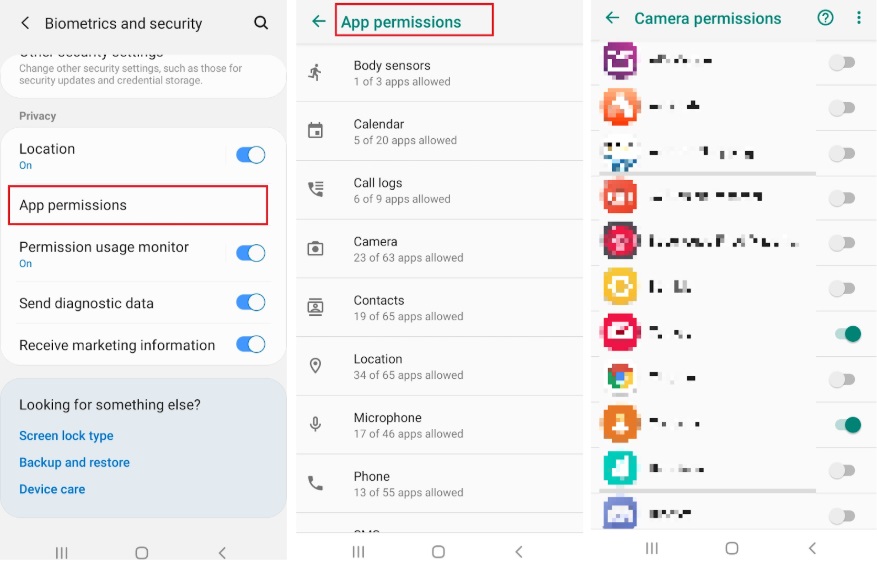
Manage Third Party App Permissions –
Permission Manager (Best for Bulk Review)
For a centralized overview:
- Go to Settings > Security & privacy (or Privacy) > Privacy (or directly Permission manager on some devices).
- Tap a category (Camera, Location, Microphone, Storage, etc.).
- See which apps have access and toggle them individually.
This view reveals patterns—like 23 apps with camera access when only a handful should.
Privacy Dashboard (Your 24-Hour Activity Log)
Android’s Privacy dashboard is a hidden gem for spotting sneaky behavior:
- Settings > Security & privacy > Privacy > Privacy dashboard.
- View a timeline of recent accesses to location, camera, and microphone over the last 24 hours.
- Tap any entry to jump straight to permission settings and revoke access.
I check this weekly. One time it showed a banking app accessing the microphone at odd hours—turned out to be a voice verification feature I never used. Revoking it gave me peace of mind and a small battery boost.
Pro tip for Android: Watch for “Special app access” (All files access, Display over other apps, etc.)—these are powerful and often over-requested by file managers or cleaners.
How to Check and Manage App Permissions on iPhone
iOS emphasizes context-aware prompts and centralized privacy controls. Permissions are requested when an app first needs them, and you can fine-tune options like precise vs. approximate location.
By Permission Category (Most Powerful View)
- Open Settings > Privacy & Security.
- Scroll to categories: Location Services, Camera, Microphone, Photos, Contacts, Tracking, etc.
- Tap one to see every app with access.
- Toggle permissions or choose options like:
- Never
- Ask Next Time Or When I Share
- While Using the App
- Always (rarely needed)
This category view makes it easy to spot overreach across dozens of apps at once.

New iOS 16 Privacy & Security Features You Need To Know About
Per-App Method
- Scroll down in Settings until you see the list of installed apps.
- Tap the app.
- Adjust any listed permissions directly.
App Tracking Transparency
Settings > Privacy & Security > Tracking — toggle which apps can track your activity across other companies’ apps and websites. Many users turn most of these off after the initial prompts.
App Privacy Report (Your 7-Day Privacy Auditor)
This is one of Apple’s smartest features:
- Settings > Privacy & Security > App Privacy Report.
- Tap Turn On App Privacy Report (it’s off by default).
- After a few days of normal use, review:
- Data & Sensor Access (how often apps use camera, location, etc.)
- App & Website Network Activity
- Most Contacted Domains
It’s stored locally on your device and gives incredible visibility. I turned mine on and discovered a shopping app contacting 15+ tracking domains daily—eye-opening.
Android vs iPhone: Permissions Head-to-Head
Here’s how the platforms compare in practice:
| Aspect | Android | iPhone (iOS) |
|---|---|---|
| Primary Path | Settings > Apps or Permission manager | Settings > Privacy & Security |
| Granularity | Excellent runtime options; “while using” | Precise controls (e.g., approximate location) |
| Timeline View | Privacy Dashboard (24 hours) | App Privacy Report (7 days) |
| Tracking Control | Permission-based + Google account settings | Dedicated Tracking section + ATT prompts |
| Install-Time Info | Permission list on Play Store | Privacy nutrition labels in App Store |
| Strength for Beginners | Centralized manager helps spot patterns | Category view + prompts feel more intuitive |
| Power User Flexibility | Higher (background services, special access) | Stricter background limits by design |
My take: Android feels more flexible for customization, while iOS builds stronger defaults and transparency. Neither is perfect—both require active user involvement.
Key Insights and Best Practices I’ve Learned the Hard Way
- Adopt the “While Using” Mindset — Default to the least permissive option. You can always grant more temporarily.
- Audit After Updates — App updates often sneak in new permission requests. Check changelogs or review permissions immediately after updating.
- Battery = Privacy Clue — Apps with constant location or background refresh kill battery. Fixing permissions often improves daily usage time noticeably.
- AI Apps Require Extra Caution — Voice assistants, photo editors, and chatbots frequently request microphone or full storage access. Ask: “Is always-on listening truly necessary, or can it activate on command?”
- Uninstall Ruthlessly — Unused apps still retain permissions. Delete them to eliminate risk.
- Set a Quarterly Reminder — Put a recurring calendar event: “Review app permissions.” It takes 10–15 minutes and pays dividends.
- Special Cases:
- Kids’ devices: Use family link (Android) or Screen Time (iOS) to lock down permissions.
- Work apps: Consider separate profiles or work profiles on Android.
One fresh perspective: Permissions aren’t just about privacy—they’re about agency. Every time you deny unnecessary access, you’re training the ecosystem (and yourself) that data isn’t free for the taking.
Take Action Today
Open your phone’s Settings right now. Spend 10 minutes checking your top 5 most-used mobile apps. You might be surprised—and empowered—by what you find.
What’s the most shocking or unnecessary permission you’ve ever discovered? Drop it in the comments—I read every one. If this guide helped, share it with friends who still click “Allow” without thinking.
For more in-depth privacy guides, battery optimization tips, and mobile app security deep-dives, subscribe to the newsletter below. Your data is yours—let’s keep it that way.
Also Read: Mobile Apps Disturbing Your Sleep at Night: How Your Phone Steals Your Rest (and How to Fight Back)